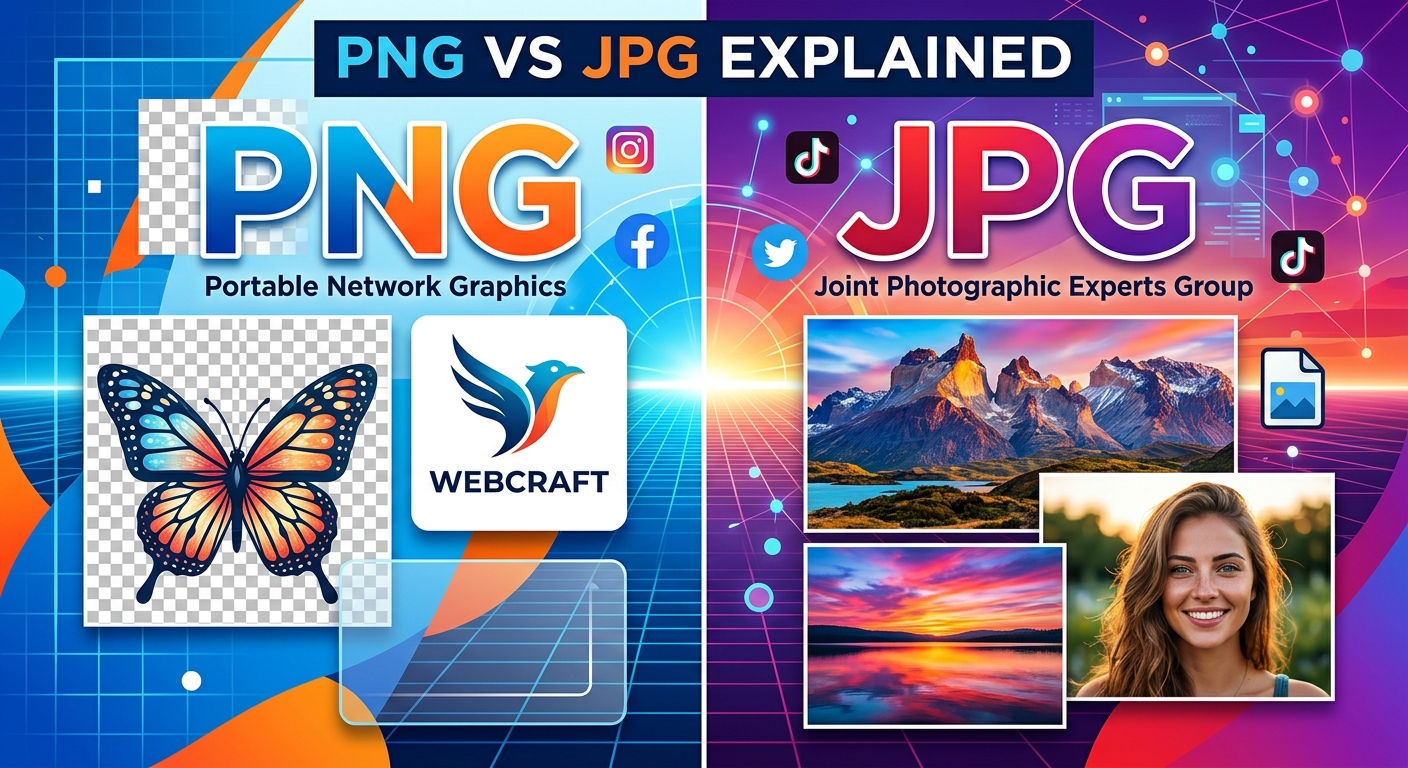
You uploaded a logo to your website and it looked perfect. Then you posted it on Instagram and a white box appeared around it. That is not a glitch. That is a format mismatch, and it trips up content creators every single day.
PNG and JPG are both image files. But they were built for completely different jobs. Choosing the right one changes how your images look, how fast your pages load, and how professional your content appears across every platform.
Format Fast Facts
- PNG preserves transparent backgrounds and crisp edges, making it the right pick for logos and graphics with text.
- JPG compresses photos into much smaller files, which loads faster on websites and social media feeds.
- Matching the format to the use case prevents blurry images, unexpected white boxes, and slow page load times.
Two Formats with Two Very Different Histories
JPG (also written JPEG) arrived in the early 1990s. Engineers designed it specifically for photographs. The format works by discarding image data your eye is unlikely to notice. That trade-off produces smaller files, which mattered enormously when internet connections were slow and storage was expensive.
PNG came along in 1996 as a cleaner, lossless alternative. It keeps every pixel exactly as you saved it. No data is discarded. That fidelity costs you file size, but it gives you something JPG simply cannot offer: a transparent background.
Both formats are still widely used today. Neither has made the other obsolete. They just serve different needs.
What "Lossy" and "Lossless" Actually Mean for Your Images
You will see these two terms often. They are simpler than they sound.
JPG uses lossy compression. Every time you save a JPG, the format discards some image information to shrink the file. Open it, edit it, save it again, and a little more data disappears. Do that enough times and the image starts to look soft or blocky. Photographers call these "compression artifacts."
PNG uses lossless compression. Save a PNG file a hundred times and it looks identical to the original. No pixel data is lost. This makes PNG ideal for images you plan to edit repeatedly, like a logo or a graphic that contains text.
For a thorough breakdown of how browsers render each format differently, Mozilla's reference on web image types covers the technical side in plain language.
The File Size Gap Is Real
Take a typical product photo. At the same resolution, a JPG version might sit around 200KB. The same image saved as a PNG could land at 1.5MB or more. That is a seven-fold difference.
File size matters on the web. Heavier pages take longer to load. Slow pages push visitors away before they ever see your content. Page speed is also a confirmed ranking factor for search engines, so your format choice carries real consequences.
For photographs, JPG wins on file size every time. For anything with flat color, sharp text, or transparency, PNG earns its larger footprint.
Transparency: The Feature That Changes Everything
Here is the scenario that catches most people off guard.
You designed a company logo with a transparent background. It sits perfectly over your white website header. Then you drop it onto a dark section of the page and a white rectangle appears behind the icon. That white box is the JPG format filling in the transparency with a solid color, because it has no other option.
JPG cannot store transparency. It has no concept of it. Every single pixel in a JPG must have a color value. When a program converts a transparent PNG to JPG, it has to invent a background color, and it usually picks white.
PNG handles alpha channels natively. A PNG logo can sit over any background color without a visible box appearing. For branding, watermarks, and interface graphics, transparency support is not a minor bonus. It is the deciding factor.
Choosing the Right Format for Each Scenario
The format choice comes down to what the image contains and where it is going.
A product photo for an online store is a photograph with gradients, shadows, and complex color transitions. JPG handles those details efficiently. The file stays small and the image looks sharp at normal viewing sizes.
A company logo with text and hard edges needs PNG. Text in a JPG softens slightly due to compression. At small sizes that softening becomes obvious. PNG keeps every edge crisp.
A screenshot for a how-to blog post often contains both interface elements and readable text. PNG is the safer choice there. The text stays readable and the UI lines stay sharp, even after the screenshot is resized to fit the post layout.
PNG vs JPG at a Glance
Format Comparison by Use Case
| Use Case | Best Format | Reason |
|---|---|---|
| Product photography | JPG | Smaller file; handles gradients and rich color well |
| Logo with transparent background | PNG | Preserves transparency; JPG cannot store it |
| Screenshot for a how-to post | PNG | Keeps UI edges and text sharp after resizing |
| Travel or lifestyle photo | JPG | Rich color depth at a fraction of PNG file size |
| Social media post image | JPG | Platforms re-compress uploads; smaller source files lose less quality |
| Infographic or chart | PNG | Flat colors and text stay clean; JPG introduces visible noise |
How Social Media Platforms Handle Your Uploads
Every major social platform recompresses your images after you upload them. When you post a photo to Instagram, the platform runs its own compression algorithm on your file before showing it to followers. You have no control over that step.
What you can control is what you give the platform to start with. A high-quality JPG at the recommended dimensions gives the platform a smaller, already-optimized source. The platform's compression affects it less than it would affect a large PNG, which often gets converted to JPG during processing anyway.
For photo-heavy posts on Instagram, Facebook, or Pinterest, upload JPG. For graphics with bold text, profile images that need to stay sharp at small sizes, or anything where crispness is the priority, PNG holds up better through the re-compression process.
When Converting Your PNG to JPG Makes Sense
There are several common situations where switching formats is the right call:
- A product image was saved as PNG for editing flexibility, but it needs to go live on an e-commerce page where file size affects load speed.
- A blog header was exported as PNG by default and the page feels slow because of it.
- A social post template was built in PNG but the platform keeps degrading the quality on upload due to the large source file.
- An email newsletter includes images, and the PNG versions are inflating the total email size past the point where it reliably delivers.
In each of these cases, converting to JPG before uploading gives you a leaner file that performs better in its destination. A browser-based PNG to JPG converter handles the job without any software to install or account to create. Drop the file in, get the JPG back, and move on.
The Quality vs File Size Balance
JPG compression is not all-or-nothing. Most tools let you choose a quality level, usually on a scale from 0 to 100. A setting around 80 to 85 typically produces a file that looks indistinguishable from the original at normal screen sizes but weighs significantly less than a lossless export.
Push quality too low and you will see blocky patches in smooth gradients and soft edges on text or hard lines. Push it to 100 and the file grows close to PNG territory without offering transparency support.
Starting at 80 to 85 quality is a reliable default for most web and social images. Adjust upward if fine detail matters in a specific photo. Adjust downward only when file size is a hard constraint and the image is displayed at small sizes.
A Word on WebP
WebP is a newer format that handles both lossy and lossless compression. It also supports transparency. All major browsers support it, and it often produces smaller files than either PNG or JPG at comparable quality settings.
If your site accepts WebP, it is worth considering for new uploads going forward. That said, many email clients and older tools still do not support it fully. PNG and JPG remain the most universally compatible choices for anything that needs to work reliably across email, print, web, and third-party platforms.
Your Format Decision Framework, Start to Finish
There is no single correct answer between PNG and JPG. The right answer depends on what is in the image and where the image is going.
Photographs with rich color and no transparent areas belong in JPG. Logos, graphics, text-heavy images, and anything with a transparent background belong in PNG. Screenshots land closer to PNG territory. Social media posts built around photographic content lean JPG.
Once those patterns are clear, the choice becomes automatic. You stop second-guessing every export setting and start producing images that load fast and look exactly the way you intended, across every page, post, and platform you publish to.
That is the real payoff. Not just knowing the difference between two file formats, but having a clear decision framework that works in every scenario you actually face.